
It’s Monday morning. Your team needs the weekly performance report. You open Google Ads and export the data. Then, GA4, export again. Then your CRM. Twenty minutes later, you’re still copying numbers into a spreadsheet, calculating week-over-week changes, and formatting everything for Slack and email.
By the time you hit send, you’ve lost an hour you’ll never get back—and you’ll do it all again next week.
There’s a better way.
In this tutorial, we’ll build a fully automated reporting workflow using n8n, an AI agent, and Databox MCP. Every Monday at 9:00 AM, it will query your live metrics, calculate changes, and deliver a summary to Slack, plus a detailed report to email. No copying. No pasting. No spreadsheets.
Let’s build it.
What You’ll Need
Before starting, make sure you have:
Databox Setup
- A Databox account with one or more connected data source (Google Ads, GA4, HubSpot, etc.)
- Your Databox MCP credentials. (get them here)
n8n Setup
- Access to n8n (either via n8n Cloud or a version your team runs internally)
- Basic familiarity with n8n’s visual workflow builder
Additional Accounts
- An OpenAI API key (used to generate the AI summary)
- A Slack workspace with a channel for reports
- A Gmail account (or another email provider) to send the detailed report
The Workflow Architecture
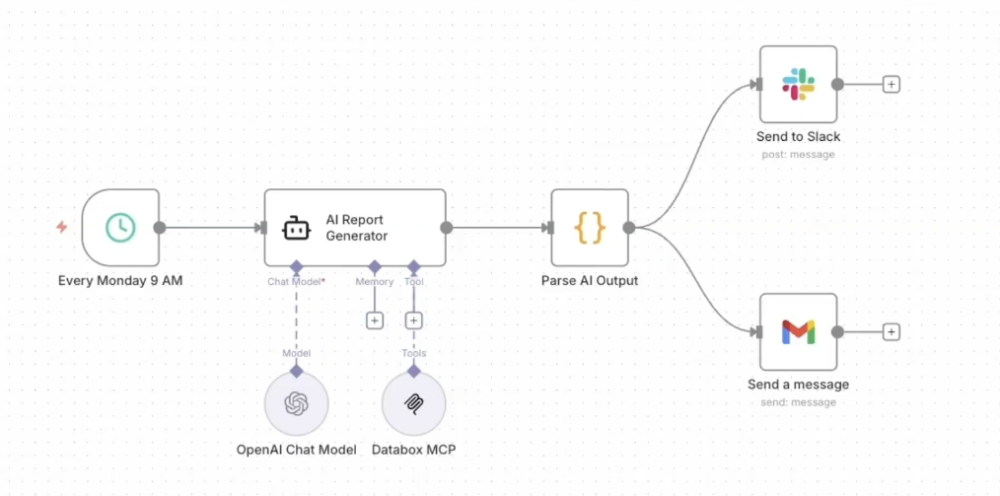
This automation runs through seven simple steps. Each one plays a specific role in turning raw data into a finished report:
- Schedule Trigger — Automatically starts the workflow every Monday at 9:00 AM.
- AI Agent — Coordinates the entire process, pulling metrics and writing the performance summary.
- OpenAI Chat Model — Powers the AI’s reasoning so it can analyze changes and explain what happened.
- Databox MCP Tool — Securely connects to your Databox account and pulls live data from your data sources.
- Parse AI Output (Code Node) — Formats the AI’s response into two versions: A short Slack summary and a detailed email report
- Slack Node — Sends a quick performance snapshot to your team’s Slack channel.
- Gmail Node — Delivers a detailed HTML report to your inbox (or stakeholders).
Step-by-Step Setup
If you prefer to skip the manual setup, copy the JSON template at the bottom of this article and paste it directly into your n8n canvas. Here’s what you’ll need to adjust in each node.
1. Schedule Trigger
What it does: Starts the workflow on a schedule.
What to change: By default, it runs every Monday at 9:00 AM using a Cron Expression (0 9 * * 1). You can adjust this to daily or monthly directly in the node’s settings.
2. The AI Tools (OpenAI & Databox MCP)
What they do: The OpenAI node provides the LLM (e.g., GPT-4o), while the Databox MCP node allows the AI to query your actual business data.
What to change:
- In the AI Chat Model node, select your preferred model (e.g.,
claude-opus-4.6) and connect your API. - In the Databox MCP node, connect your Databox MCP OAuth credentials
3. Parse AI Output (Code Node)
What it does: The AI returns both a Slack message and an HTML email separated by ---SEPARATOR---. This JavaScript code splits that output and extracts a dynamic email subject line from the HTML title.
What to change: Nothing. The code works out of the box.
4. Output Nodes (Slack & Gmail)
What they do: Deliver your generated reports.
What to change:
- Slack Node: Authenticate your Slack account. Change the Channel ID to your target channel (e.g.,
#weekly-reports) - Gmail Node: Authenticate your Google account. Update the “Send To” address to your email or team distribution list
Customizing the AI Prompt
The AI Report Generator node contains the master prompt—this is where the magic happens. Edit this text to change what data gets pulled and how the report looks.
Changing the Dates
The dates in the prompt are currently hardcoded (e.g., “January 19-25 vs January 12-18”). For an evergreen automation, replace these with dynamic n8n expressions:
{{$today.minus(7).toFormat('MMMM dd')}}Adding New Data Sources
The prompt currently asks for Google Ads and Website Sessions. To add Facebook Ads, add a line to the STEP-BY-STEP WORKFLOW section:
"For Facebook Ads dataset — ask_genie: 'Show me total ad spend, impressions, and link clicks for this week vs last week.'"Changing the Report Format
The prompt has strict FORMAT RULES. To use different colors, change the hex codes (e.g., #2563eb to your brand’s blue). To add more metrics to your Slack summary, edit the “FIRST — Slack message” section.
The n8n Workflow JSON Template
Copy the code below and paste it directly into your n8n canvas. Don’t forget to connect your credentials.
{
  "name": "Weekly Performance Report (Databox → Slack + Email)",
  "nodes": [
    {
      "parameters": {
        "rule": {
          "interval": [
            {
              "field": "cronExpression",
              "expression": "0 9 * * 1"
            }
          ]
        }
      },
      "name": "Every Monday 9 AM",
      "type": "n8n-nodes-base.scheduleTrigger",
      "typeVersion": 1.2,
      "position": [912, -368],
      "notes": "Triggers every Monday at 9 AM"
    },
    {
      "parameters": {
        "authentication": "oAuth2",
        "select": "channel",
        "channelId": {
          "__rl": true,
          "value": "YOUR_CHANNEL_ID",
          "mode": "list",
          "cachedResultName": "your-channel-name"
        },
        "text": "={{ $json.slackMessage }}",
        "otherOptions": {}
      },
      "name": "Send to Slack",
      "type": "n8n-nodes-base.slack",
      "typeVersion": 2.2,
      "position": [1744, -544],
      "credentials": {},
      "notes": "Posts weekly summary to #weekly-reports"
    },
    {
      "parameters": {
        "promptType": "define",
        "text": "Generate a weekly performance report comparing Last Week vs The Week Before.\nQuery Databox for:\n\nGoogle Ads data for both weeks (ROAS, spend, revenue, clicks, impressions, conversions)\nWebsite session data for both weeks separately — get totals, channel breakdown, organic %, and bounce rate for each week individually so you can calculate the change\nRevenue metrics (net revenue, top source, change %)\n\nCalculate week-over-week percentage changes for every metric. Then format into a Slack summary and a detailed HTML email.",
        "options": {
          "systemMessage": "You are a performance reporting assistant that queries Databox and formats weekly reports.\nSTEP-BY-STEP WORKFLOW:\n\nCall list_accounts to get the account ID\nCall list_data_sources to find available data sources\nCall list_data_source_datasets to get each dataset ID\nFor Google Ads dataset — ask_genie: \"Show me total spend, total revenue, ROAS, total clicks, total impressions, and total conversions for the previous week and the week before that. Return both weeks so I can compare.\"\nFor Website Sessions dataset — make TWO separate ask_genie calls for the two respective weeks to get total sessions grouped by channel, overall organic search percentage, and average bounce rate.\nFor Revenue dataset — ask_genie: \"What is the net revenue, previous value, change percentage, and top revenue source?\"\nCalculate WoW percentage change for EVERY metric using: ((current - previous) / previous) * 100\n\nFORMAT RULES:\nOutput two sections separated by ---SEPARATOR---\nFIRST — Slack message:\nWeekly Performance Snapshot\nAd ROAS: [value]x ([+/-X.X%] WoW)\nAd Spend: $[value] ([+/-X.X%] WoW)\nTotal Sessions: [value]k ([+/-X.X%] WoW)\nTop Channel: [channel name] ([session count] sessions)\nNet Revenue: $[value]k ([+/-X.X%] WoW)\n[One-sentence positive insight, no caveats]\nRules: Maximum 12 lines. No warnings. No disclaimers.\n---SEPARATOR---\nSECOND — HTML email:\nStructure (include ALL sections exactly as specified):\n\nHEADER\n\n\"Weekly Performance Report\" in h2, color #2563eb\n\nKEY HIGHLIGHTS BOX (light green background #f0fdf4, left border #22c55e)\n\nNet Revenue: $XX,XXX (+X.X% WoW)\nTop Channel: [channel name] — XX,XXX sessions\n\n\nGOOGLE ADS TABLE — must have ALL 6 rows:\nMetric | Current Week | WoW\nROAS | X.XX | +X.X%\nSpend | $X,XXX.XX | +X.X%\nRevenue | $X,XXX | +X.X%\nClicks | X,XXX | +X.X%\nImpressions | XX,XXX | +X.X%\nConversions | XXX | +X.X%\n\nWEBSITE TRAFFIC TABLE — must have ALL 4 rows with WoW for sessions:\nMetric | Current Week | WoW\nTotal Sessions | XX,XXX | +X.X%\nTop Channel | [channel] (XX,XXX) | +X.X%\nOrganic Search % | XX% | +X.X%\nAvg Bounce Rate | XX.X% | +X.X%\n\nONE-LINE INSIGHT — single confident sentence, no hedging\n\nThen small gray text: \"Automated report via Databox MCP + n8n\"\n\nHTML STYLING:\n\nFont: Arial, sans-serif; max-width: 600px; margin: 0 auto\nSection headers: color #059669\nTable: width 100%, border-collapse collapse\nTable header row: background #2563eb, white text, padding 10px\nAlternating data rows: #ffffff and #f3f4f6\nCell borders: 1px solid #e5e7eb, padding 10px\nWoW positive values: color #059669 (green)\nWoW negative values: color #dc2626 (red)\n\nSTRICT — DO NOT INCLUDE:\n\nAnomaly Watch sections\nWarnings or caveats\nData quality notes\nRevenue disclaimers or footnotes\nAny text after the footer\n\nThe report ends at the footer. Nothing else.\nReturn:\n[Slack message]\n---SEPARATOR---\n[HTML email]"
        }
      },
      "name": "AI Report Generator",
      "type": "@n8n/n8n-nodes-langchain.agent",
      "typeVersion": 3,
      "position": [1136, -368]
    },
    {
      "parameters": {
        "sendTo": "your.email@company.com",
        "subject": "={{ $json.emailSubject }}",
        "message": "={{ $json.emailBody }}",
        "options": {}
      },
      "type": "n8n-nodes-base.gmail",
      "typeVersion": 2.2,
      "position": [1744, -240],
      "name": "Send a message",
      "credentials": {}
    },
    {
      "parameters": {
        "model": {
          "__rl": true,
          "value": "gpt-4o",
          "mode": "list",
          "cachedResultName": "gpt-4o"
        },
        "builtInTools": {},
        "options": {
          "maxTokens": 30000
        }
      },
      "type": "@n8n/n8n-nodes-langchain.lmChatOpenAi",
      "typeVersion": 1.3,
      "position": [1136, -144],
      "name": "OpenAI Chat Model",
      "credentials": {}
    },
    {
      "parameters": {
        "jsCode": "// Get the AI output\nconst aiOutput = $input.first().json.output;\n\nif (!aiOutput) {\n  throw new Error('No output received from AI Report Generator');\n}\n\n// Split by separator\nconst parts = aiOutput.split('---SEPARATOR---');\n\nif (parts.length < 2) {\n  throw new Error('AI output missing ---SEPARATOR---. Got: ' + aiOutput.substring(0, 200));\n}\n\nconst slackMessage = parts[0].trim();\nconst emailHTML = parts[1].trim();\n\n// Extract subject from the HTML or use default with date range\nlet emailSubject = 'Weekly Performance Report';\nconst titleMatch = emailHTML.match(/<title>(.*?)<\\/title>/i);\nif (titleMatch) {\n  emailSubject = titleMatch[1];\n} else {\n  const h2Match = emailHTML.match(/<h2[^>]*>(.*?)<\\/h2>/i);\n  if (h2Match) {\n    emailSubject = h2Match[1].replace(/<[^>]*>/g, '').trim();\n  }\n}\n\n// Return single item with all fields so both Slack and Gmail get everything\nreturn [{\n  json: {\n    slackMessage: slackMessage,\n    emailSubject: emailSubject,\n    emailBody: emailHTML\n  }\n}];"
      },
      "name": "Parse AI Output",
      "type": "n8n-nodes-base.code",
      "typeVersion": 2,
      "position": [1488, -368]
    },
    {
      "parameters": {
        "endpointUrl": "https://mcp.databox.com/mcp",
        "authentication": "mcpOAuth2Api",
        "options": {}
      },
      "type": "@n8n/n8n-nodes-langchain.mcpClientTool",
      "typeVersion": 1.2,
      "position": [1280, -144],
      "name": "Databox MCP",
      "credentials": {}
    }
  ],
  "pinData": {},
  "connections": {
    "Every Monday 9 AM": {
      "main": [
        [
          {
            "node": "AI Report Generator",
            "type": "main",
            "index": 0
          }
        ]
      ]
    },
    "OpenAI Chat Model": {
      "ai_languageModel": [
        [
          {
            "node": "AI Report Generator",
            "type": "ai_languageModel",
            "index": 0
          }
        ]
      ]
    },
    "AI Report Generator": {
      "main": [
        [
          {
            "node": "Parse AI Output",
            "type": "main",
            "index": 0
          }
        ]
      ]
    },
    "Parse AI Output": {
      "main": [
        [
          {
            "node": "Send to Slack",
            "type": "main",
            "index": 0
          },
          {
            "node": "Send a message",
            "type": "main",
            "index": 0
          }
        ]
      ]
    },
    "Databox MCP": {
      "ai_tool": [
        [
          {
            "node": "AI Report Generator",
            "type": "ai_tool",
            "index": 0
          }
        ]
      ]
    }
  },
  "active": false,
  "settings": {
    "executionOrder": "v1"
  }
}
What You’ll Get
Once this workflow is live:
- Every Monday at 9 AM, the AI queries your Databox data
- Slack receives a quick summary with key metrics and week-over-week changes
- Email receives a detailed HTML report with full breakdowns
- You get your Monday morning back
The first run takes about 30 minutes to set up. Every week after that, it takes zero.
Troubleshooting
The AI isn’t pulling data correctly
- Verify your Databox MCP credentials are connected
- Check that your data sources have recent data in Databox
- Make sure the dataset names in your prompt match what’s in Databox
The Slack message isn’t posting
- Confirm the Channel ID is correct (use the channel ID, not the name)
- Check that your Slack app has permission to post to that channel
The email looks broken
- The AI sometimes generates malformed HTML. Add explicit formatting rules to your prompt
- Test with a simpler email template first
Ready to build your own AI-driven analytics workflows? Try Databox for free to connect your sources in seconds. Use our analytics MCP to automate reporting, trigger actions, and chat with your data inside Claude, n8n, and more.
Want to explore more ways to use Databox MCP with AI? Check out our MCP documentation for additional use cases and setup guides.