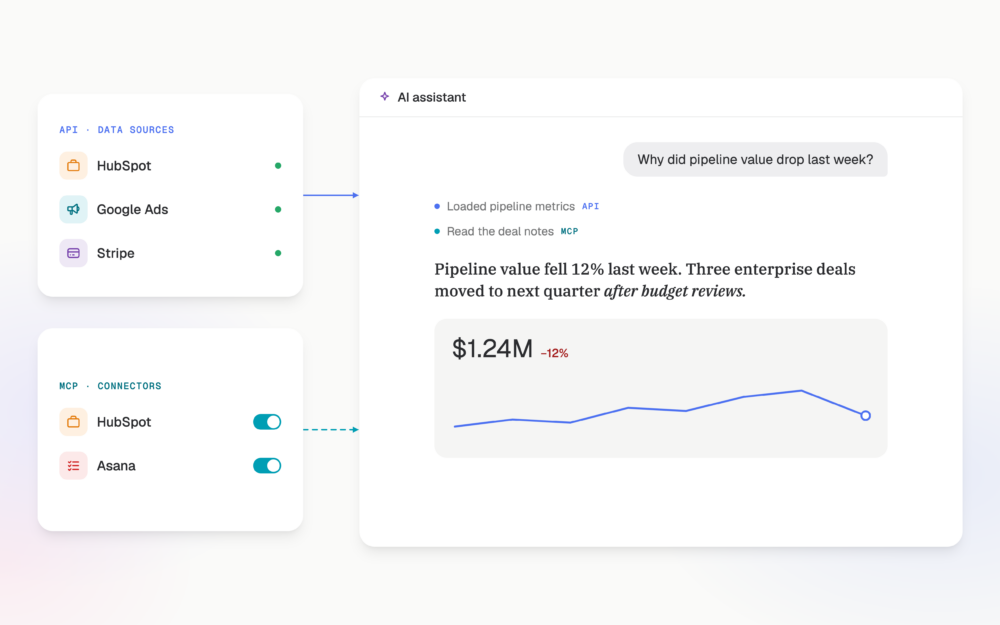

Open pipeline drops when deals leave it (closed won, closed lost or pushed out of the period) or when fewer new deals come in. Your CRM dashboard shows which of those happened. The reason behind it sits in HubSpot, in the notes, emails and call logs on the deals themselves. To find it in one question, ask an AI analyst that can read both. With the HubSpot MCP connector, Genie, the Databox AI Analyst, traces the drop to the deals behind it and tells you what the reps wrote about them.
TL;DR
- A sales dashboard shows how much pipeline dropped and which stage it left from. It can’t show why, because the why is written in deal notes, one record at a time.
- The HubSpot MCP connector gives Genie access to the deal notes, engagements and records behind the CRM metrics you already track in Databox.
- One question traces the drop to the closed-lost deals and what was logged on them. A follow-up finds open deals stalling for the same reason, while there’s still time to save them.
- Genie reads the notes. It doesn’t recalculate your pipeline, so the numbers in the answer match the dashboard your team already reports from.
- Connect HubSpot, sign in with OAuth and set each tool to Always, Ask or Block. Every tool starts on Ask. MCP connectors are included with the AI Analyst at no extra cost.
Every pipeline review starts with a question the dashboard can only half answer. It shows that open pipeline fell, which stage the deals left from and which week they left. It doesn’t show what the buyers said. That part is in HubSpot, written down by the reps who worked the deals, one record at a time.
So the reason gets assembled by hand. Filter for every deal that closed lost or slipped, open the first record, read the timeline, open the next. That reading is the slow part, because the answer isn’t in a field. It’s in prose.
The reason was never missing. It was spread across a dozen timelines, one click apart.
The video below runs a pipeline drop on a demo account with fictional data. Genie finds the cause in one question.
The integration shows what changed. The connector shows why.
Databox works with HubSpot in two ways, and they answer different questions.
The HubSpot integration pulls your CRM metrics into Databox: open pipeline, deals created, deals won and lost, win rate, lead counts. You track them on dashboards next to the rest of your data. They tell you what changed and when.
The HubSpot MCP connector gives Genie access to the records behind those metrics through HubSpot’s official MCP server. That means the notes, emails, calls and meetings logged on each deal. Genie sees what the HubSpot user who connected it can see, and nothing more.
Put together, Genie starts from the number on your dashboard and goes to the records that explain it. In the demo, that’s the difference between “pipeline dropped 17.5%” and “pipeline dropped 17.5% because two deals were lost on price after the September 1 rate change.” The first is a report. The second is something you can act on while the open deals are still open.
The number itself never moves. Genie reads the notes. It doesn’t recalculate your pipeline, so the 17.5% in the answer is the 17.5% your team already reports.
HubSpot is one of the tools in the MCP connector library. The same pattern explains which customers moved your MRR in Stripe and why organic traffic dropped in Semrush.
One question traces the drop to the deals behind it
Start from the metric that moved:
Genie reads the drop from your dashboard, then goes to HubSpot for the deals behind it: which closed lost, which moved out of the period, and what was logged on each. In the demo, the answer fits in three lines. Two deals were lost on price, and the notes on both point to the rate change that took effect on September 1. A third lost its champion.
That’s a different conversation from “pipeline is down.” Losing deals on price right after a rate change is a question for sales leadership about pricing and positioning. A lost champion is a single-threaded deal, and that’s a conversation with one rep. Neither shows up on a dashboard. A closed-lost dropdown flattens both into one word.
Ask Genie to name the deals and quote the notes it used. You get a list you can open in HubSpot and check, not a summary you have to take on faith. The 17.5% and the $1.04M come from your Databox metrics, calculated by the query engine, so they match the dashboard your team already reports from.
The same reason may be sitting in your open deals too
Closed-lost deals explain the drop you already had. Open deals tell you whether it’s still happening.
In the demo, Genie flags four open deals worth $310k, stalling for the same reason. These aren’t stale deals. Reps are working them and logging calls. The notes just keep coming back to price. A check for inactivity would never flag them, because they’re not quiet. They’re losing. (Quiet deals are a different problem, and the stale-deal check catches those.)
Then ask whether the pattern sits with one rep or across the team. If it’s one rep, it’s a coaching conversation. If it’s everyone, it’s the price, and it goes into the next pipeline review with the deals named.
The answer is only as good as what reps wrote down
Genie can only read what’s on the record. A deal closed lost with “Price” in the dropdown and no note gives it nothing to work with. Notes that stop two months before a deal closed tell you something too: nobody was working it.
Treat the first answer as a lead, not a verdict. Open two or three of the deals Genie cites and read the notes yourself. If the pattern holds, you have your cause. If the notes are thin, you’ve learned something else worth fixing: ask reps for one line on why whenever they close a deal lost, and log calls, not just tasks. Genie doesn’t fix thin notes. It shows you how thin they are, fast.
No more opening every deal record before the pipeline review
Most pipeline reviews run on preparation nobody sees: the record-by-record reading described above.
With the connector, the prep is one question. The review starts from the cause, with the deals named, and the hour goes to what to do about it. To have that answer ready before every review, turn the question into a Routine.
HubSpot’s MCP server also works in Claude directly, and this guide covers that setup. Connected that way, the AI reads HubSpot’s records and computes your pipeline metrics on its own terms. Connected through Databox, the same records sit next to your dashboards, goals and other integrations, and the numbers are the ones your team already agreed on.
How to connect HubSpot to Genie
Open Connectors in Genie’s settings, add HubSpot and sign in with your HubSpot account. Sign-in uses OAuth, so you never paste a password or API key into Databox. The current setup steps are on the HubSpot MCP connector page.
Then set each HubSpot tool to Always, Ask or Block. Every tool starts on Ask, so Genie asks before it uses one. Everything in this article only reads: deals, notes and engagements. HubSpot’s server also has tools that can update records, and those stay on Ask until you change them, so nothing in HubSpot changes without your approval. Switch the read tools you trust to Always, and block anything you want Genie to leave alone. You can change permissions or disconnect at any time.
MCP connectors are included with the AI Analyst at no extra cost.
Conclusion
A pipeline drop is rarely a mystery to the people who worked the deals. Reps log the pushback, the stalled call, the champion who went quiet. The reason gets written down. It just sits in timelines nobody has time to open before the review.
The integration counts what left. The notes say why, while the open deals can still be saved.
Connect HubSpot to Genie and ask about your last pipeline drop. Set it up on the HubSpot MCP connector page, then start a 14-day Team trial.
FAQ
Frequently asked questions
Why did our pipeline drop?
Open pipeline drops when deals leave it, by closing won, closing lost or moving out of the period, or when fewer new deals come in. Your CRM dashboard shows which of these happened. The reason usually sits in the notes, emails and call logs on the deals involved. An AI analyst with access to HubSpot can read those records and name the cause, such as a pricing objection that shows up across several lost deals.
What is the HubSpot MCP connector in Databox?
The HubSpot MCP connector gives Genie, the Databox AI Analyst, access to HubSpot’s official MCP server. Genie can then read the deal notes and engagements behind your CRM metrics, within the HubSpot permissions of the account you connect.
What is the difference between the HubSpot integration and the HubSpot MCP connector?
The HubSpot integration brings your CRM metrics into Databox dashboards and reports, with history you can track. The HubSpot MCP connector gives Genie access to the records behind those metrics, so it can explain a change with the deals and notes that caused it. The integration shows what changed. The connector shows why.
Can Genie change deals in HubSpot?
Not without your approval. Every HubSpot tool on the connector starts on Ask, so Genie asks before it uses one. You can set each tool to Always, Ask or Block, and you can change these settings or disconnect at any time.
Can I connect HubSpot’s MCP server to Claude directly?
Yes, and \u003ca href=\u0022/hubspot-mcp\u0022\u003ethis guide covers what that setup does and doesn’t do\u003c/a\u003e.
Do MCP connectors cost extra?
No. MCP connectors are included with the AI Analyst at no extra cost.