
Bring business context into AI analysis with MCP connectors.
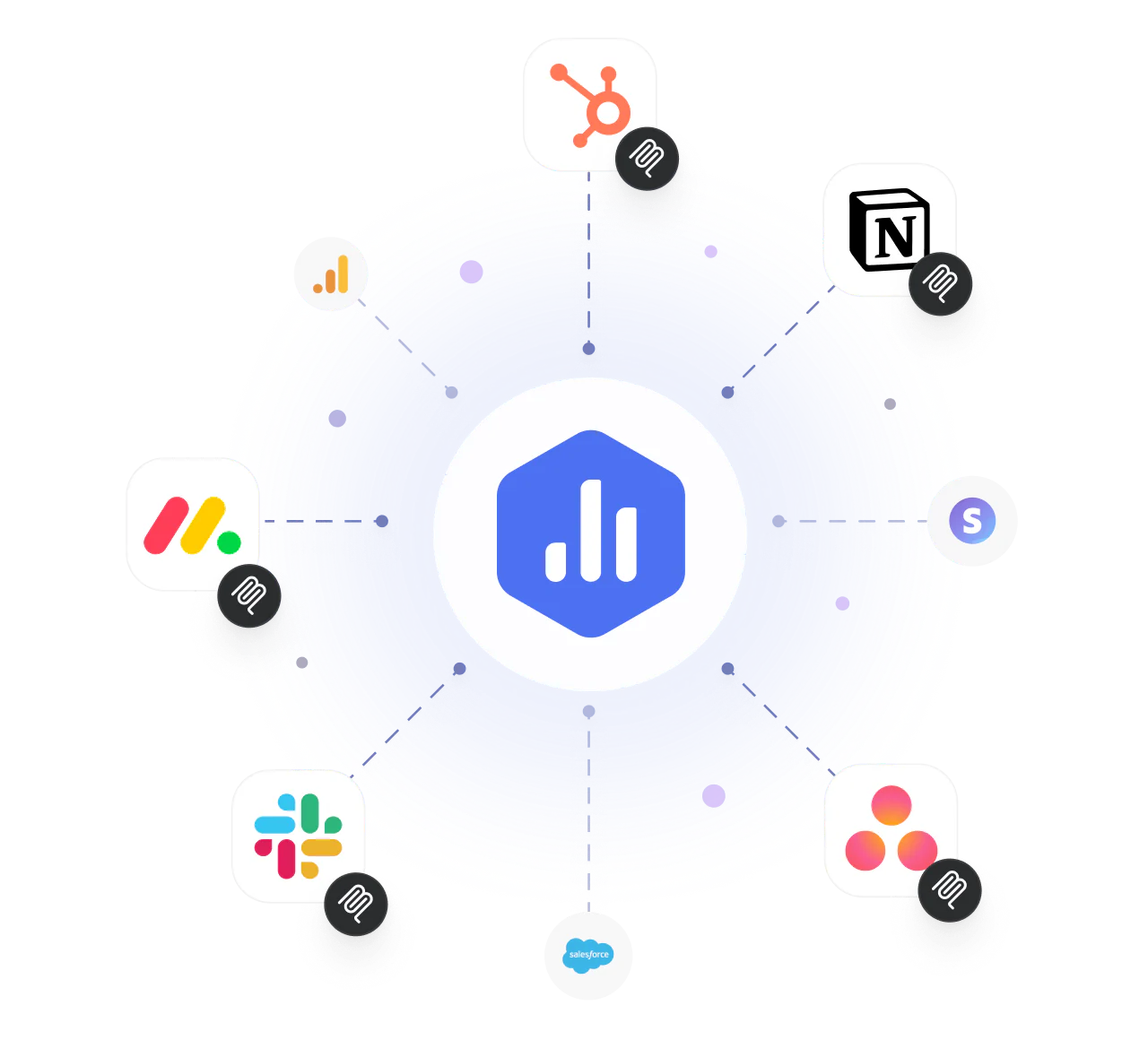
MCP connectors give your AI Analyst live access to the tools where your business happens, so it explains a metric with the real record behind it.
The basics
What is an MCP connector?
An MCP connector links your AI Analyst to an external tool through the Model Context Protocol (MCP), an open standard for connecting AI assistants to real business systems. Once connected, your AI Analyst can read the records behind your metrics - the deal, the ticket, the ad, the conversation - and use them to answer your questions, not just report the number.
Connect an official, pre-built connector in one click, or point your AI Analyst at any other MCP server your team already runs as a Custom connector. Both work the same way once connected.
Popular:
 Facebook Ads
 Klaviyo
 Notion
 Stripe
Directory
Browse every MCP connector
Filter by category, or search for the tool you use every day.
Category
Sort by

Customer.io
Marketing Automation
See the campaign and message behind a delivery metric, straight from Customer.io.

MailerLite
Email Marketing
See the campaign behind an email metric, straight from MailerLite.

Microsoft Advertising
Advertising
See the campaign and keyword behind a change in ad performance, straight from Microsoft Advertising.

Ahrefs
SEO
See the backlink and site audit detail behind an SEO metric, straight from Ahrefs.

Avoma
Team Communication
Bring the meeting summary behind a metric into your AI Analyst, straight from Avoma.

Calendly
Scheduling
See the booking behind a scheduling metric, straight from Calendly.
Facebook Ads
Advertising
See the ad creative behind a change in ad performance, straight from Facebook Ads.

Fireflies
Team Communication
Bring the call transcript behind a metric into your AI Analyst, straight from Fireflies.

Intercom
Customer Support
See the conversation behind a support metric, straight from Intercom.
Klaviyo
Email & SMS Marketing
See the email template and flow behind a revenue change, straight from Klaviyo.

monday.com
Project Management
See the board item and update history behind a delayed deliverable, straight from monday.com.

Semrush
SEO
See the keyword and backlink research behind an SEO metric, straight from Semrush.

Xero
Accounting & Finance
See the invoice and contact behind a change in your finances, straight from Xero.

Zoom
Team Communication
See the meeting and call summary behind an engagement metric, straight from Zoom.

Airtable
Productivity
See the record and base behind an operations metric, straight from Airtable.

Asana
Project Management
Bring the task and comment history behind your project metrics into your AI Analyst, straight from Asana.

Canva
Design
Ask your AI Analyst about the design behind the metric, straight from Canva.

Granola
Productivity
Bring the meeting note behind a metric into your AI Analyst, straight from Granola.

Mixpanel
Product Analytics
See the session replay and business context behind a product metric, straight from Mixpanel.

PostHog
Product Analytics
See the session and feature flag behind a product metric, straight from PostHog.

Webflow
Website & CMS
See the page and CMS item behind a website metric, straight from Webflow.

WordPress
Website & CMS
See the post and page behind a content metric, straight from WordPress.

ClickUp
Project Management
See the task and comment history behind your team's progress.

Confluence
Docs & Wiki
Bring the doc and postmortem behind your metrics into your AI Analyst, straight from Confluence.

HubSpot
CRM & Marketing
See the deal note and campaign copy behind your CRM metrics, straight from HubSpot.

Linear
Project Management
Bring the issue and cycle history behind your product metrics into your AI Analyst.

Sentry
Monitoring & Errors
See the error and release behind a spike in your error rate.
Stripe
Payments & Finance
See the invoice and payment behind a change in revenue.

Zapier
Automation
Let your AI Analyst trigger the automations behind your workflows, through Zapier.

Figma
Design
Ask your AI Analyst about the design behind the metric, straight from Figma.

GitHub
Developer Tools
See the commit and pull request behind any engineering metric, right from your AI Analyst.

Jira
Project Management
See the ticket and sprint history behind your engineering metrics.
Notion
Productivity & Docs
Bring the doc and the roadmap behind your metrics into your AI Analyst.

Slack
Communication
Give your AI Analyst the thread behind the number, straight from Slack.
Why it matters
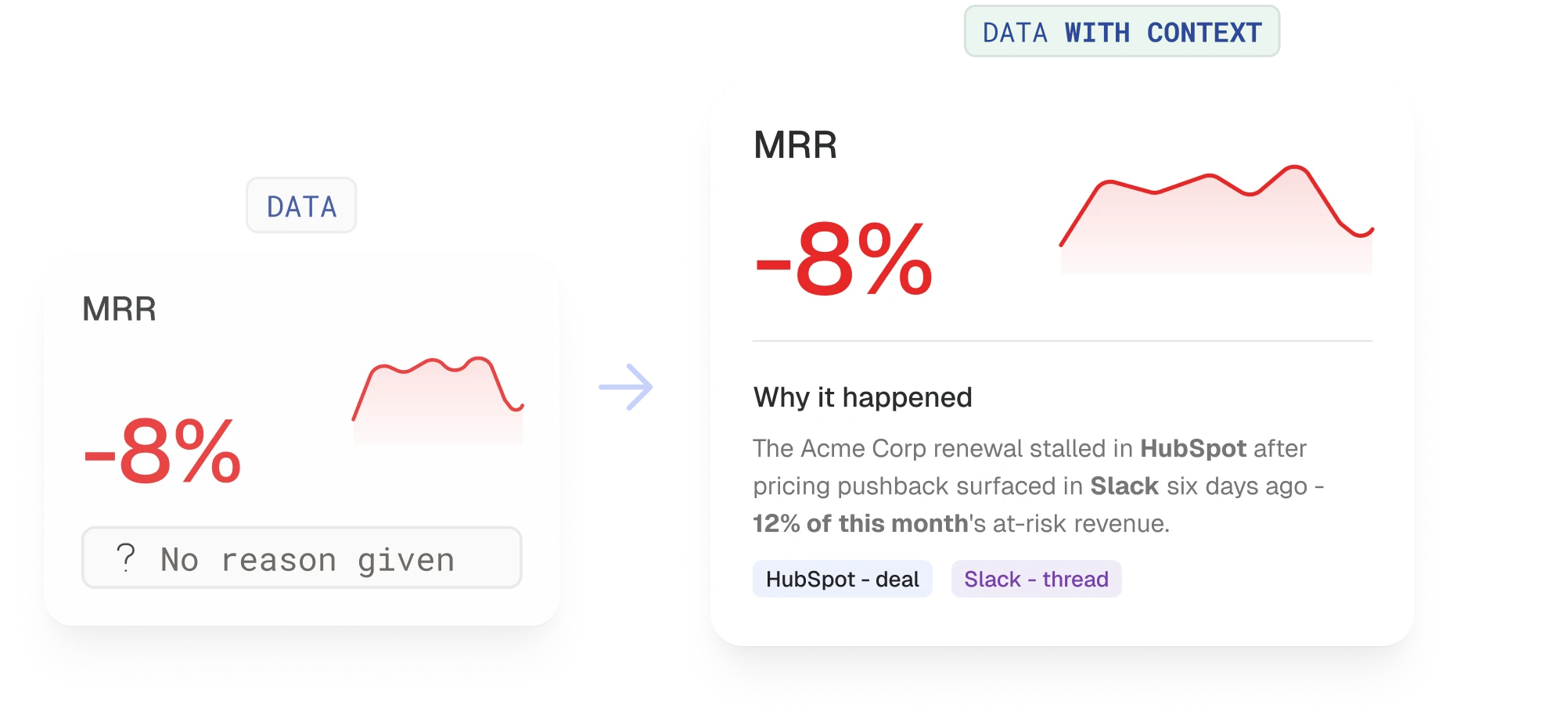
Your data shows what changed. Context helps explain why.
MCP connectors give your AI Analyst context from your business tools.
Connect any tool via MCP
Bring in deals from your CRM, tickets from support, campaigns from your project tools, and conversations from Slack, all through MCP connections.
Give AI a more complete picture
Your AI Analyst and agents combine performance data with the work behind it, so they know more than the numbers.
Get more relevant recommendations
Answers and recommendations reflect what changed in the business, not just what changed in the metrics.
The Databox difference
Why connecting MCP through Databox is different
You can connect this same MCP server directly to any AI tool. Here’s what changes when you connect it through Databox instead.
One tool, limited to MCP data
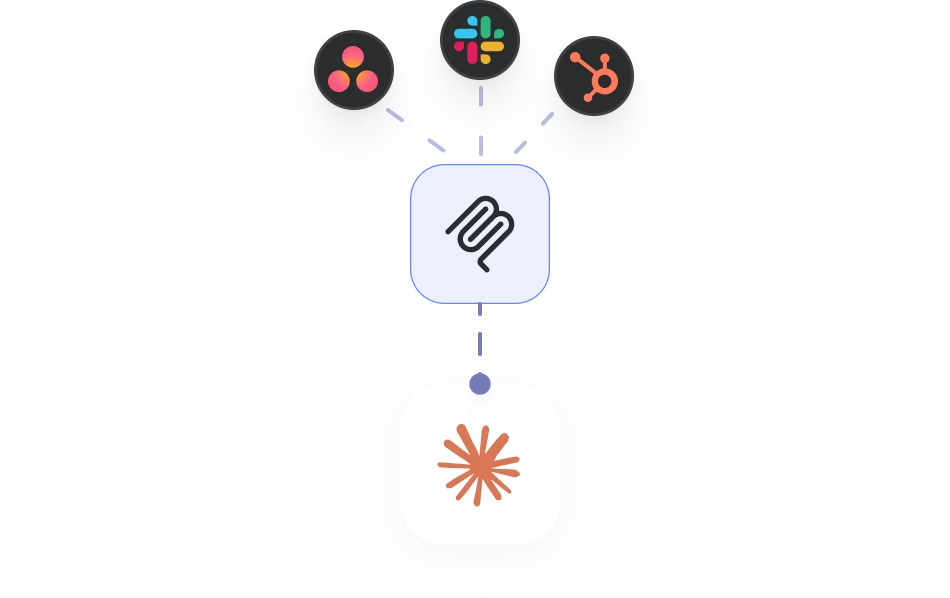
- Only sees what this MCP server exposes, nothing more
- No connection to your CRM, chat, or revenue data
- Not wired into your business context, so nothing runs automatically
With Databox
Enriched data, the whole story
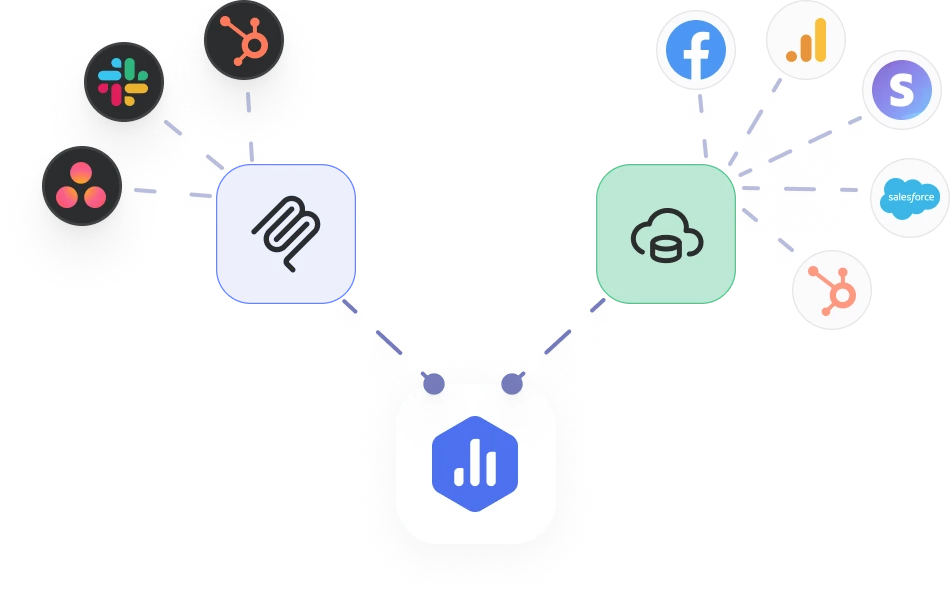
- The MCP connector brings in this data, same as anywhere else
- Plus your other Databox integrations, already connected
- Your AI Analyst reasons over the whole story, not just this one tool
- Runs automatically with Routines, reusable in every Skill
How it works
From data to action, automatically
Step 1
Connect your data
Bring in performance data from your existing sources.
Step 2
Add business context
Give your AI Analyst access to context through MCP connectors.
Step 3
Get trusted insights
With data context, AI Analyst gives a fuller, more accurate answer.
Step 4
Act on insights
Let agents take action autonomously based on the permissions you set.
Connector types
Choose from pre-built connectors, or add any MCP server
Every connector on this page works one of two ways. Both give your AI Analyst the same kind of access - the difference is who built the server and how you set it up.
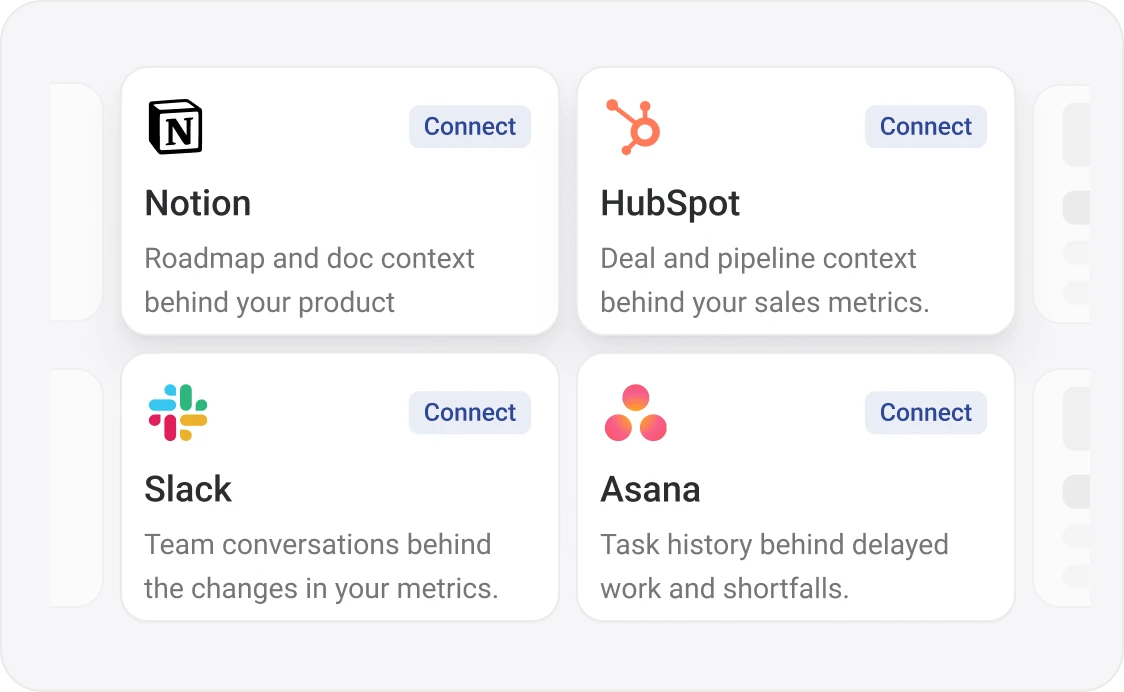
Pre-built connectors
A growing library of MCP connectors you can set up in one click.
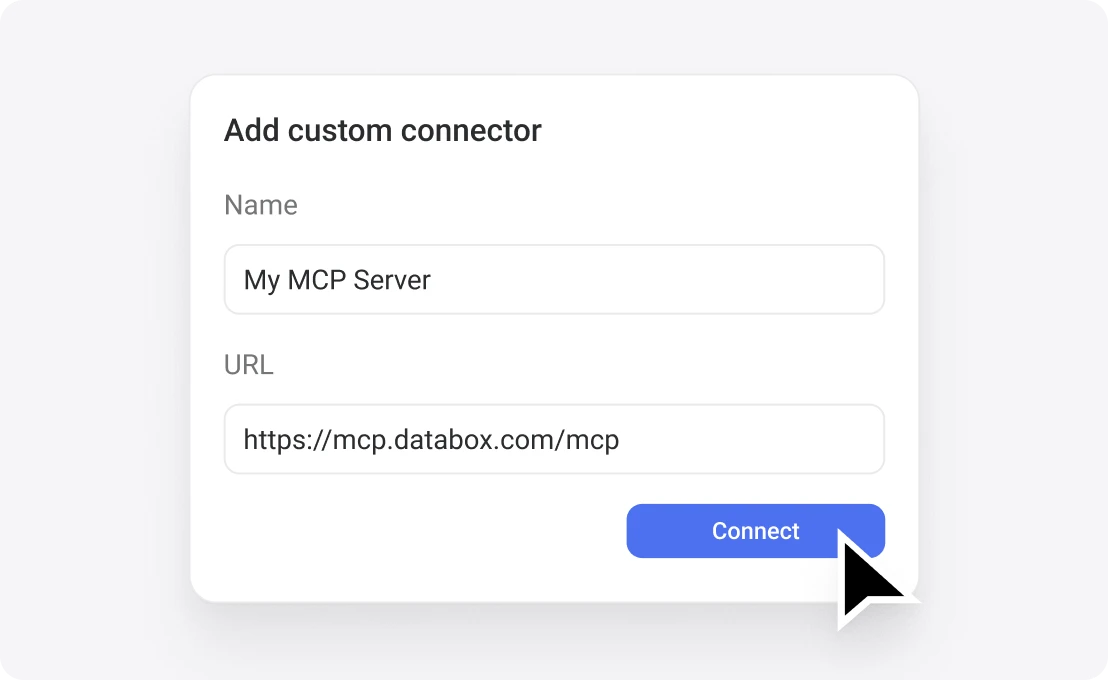
Custom connectors
Use a custom connector for tools that aren’t in the library.
Permissions
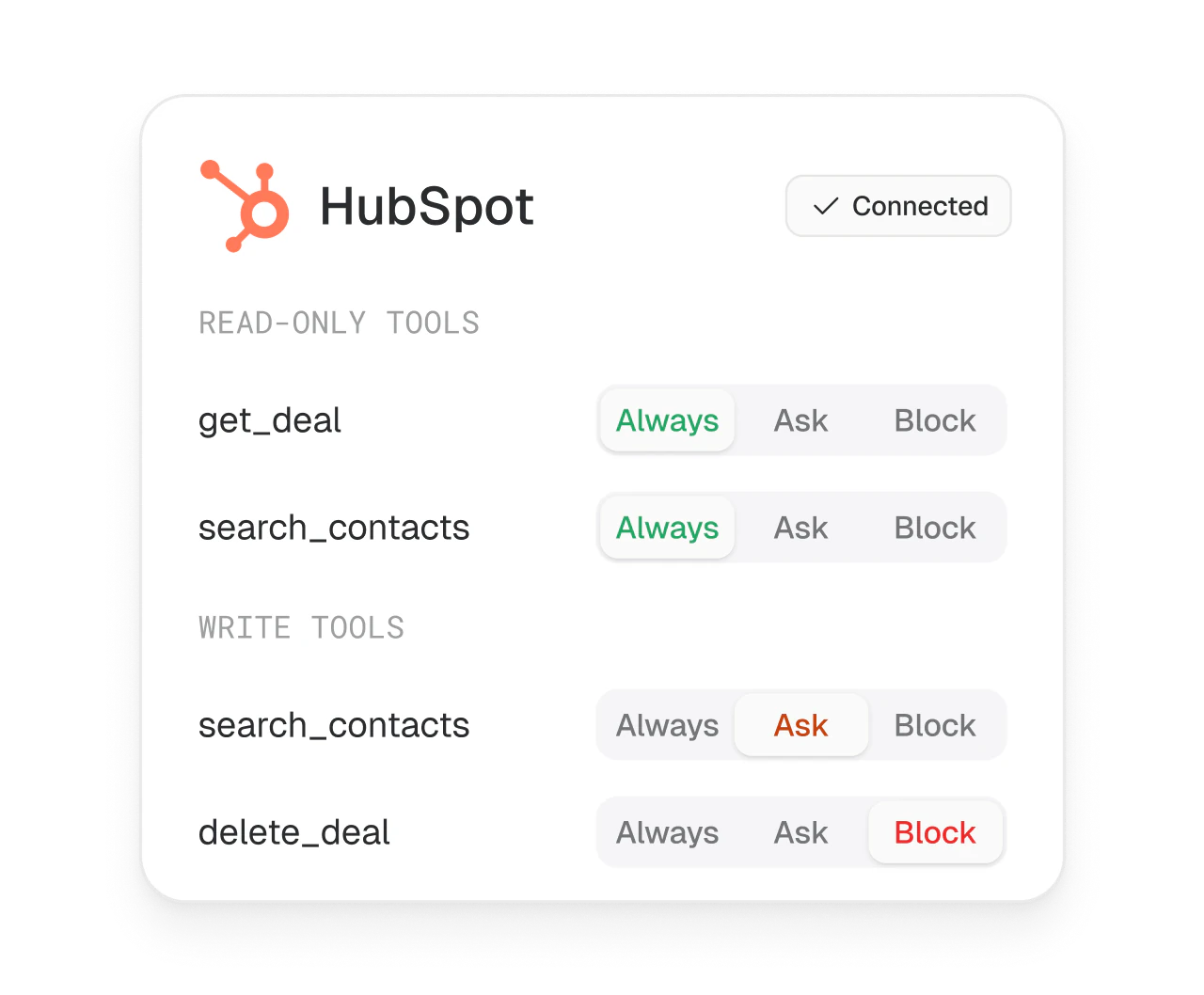
Your AI gets access. You stay in control.
Every tool, read or write, needs your permission first.
- can run autonomously
- requires your approval
- can’t be used, ever
Agentic workflows
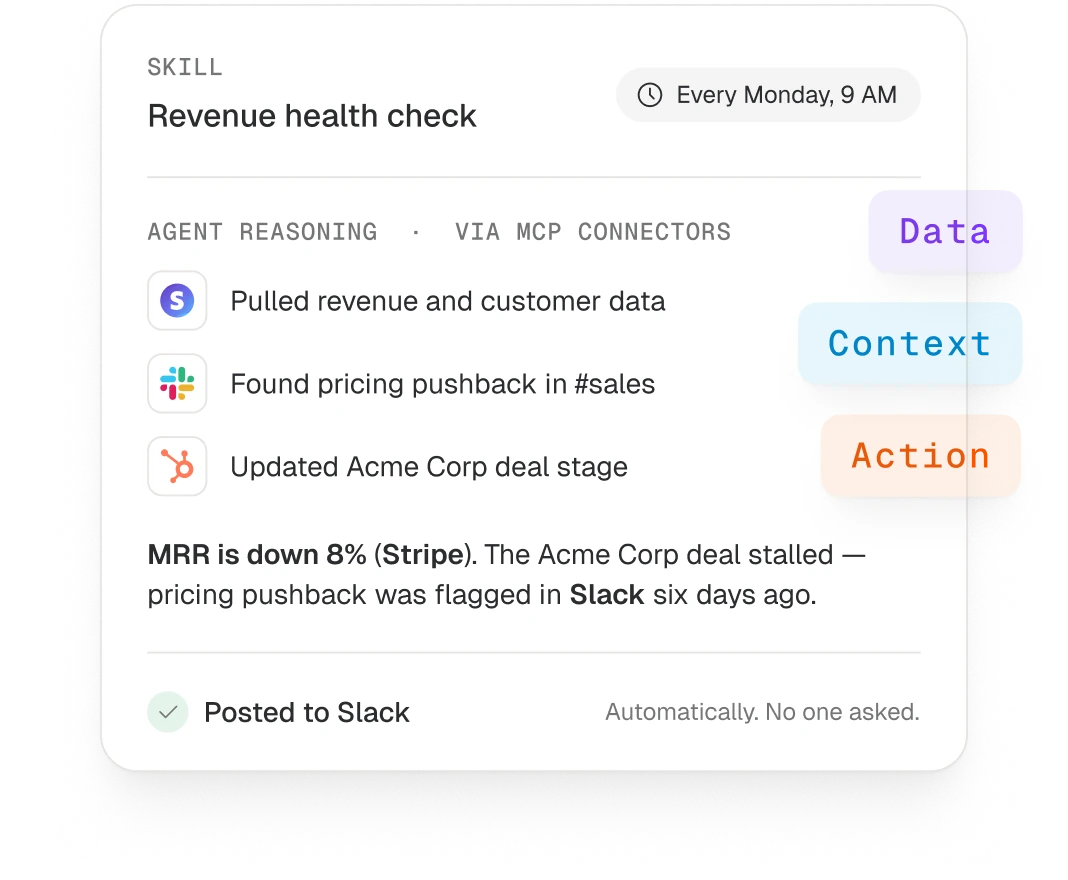
Data, context, and action in one workflow
Set a routine once. The agent pulls your data, finds the context behind it, and takes action.
Routine
Every Monday, 9 AM
Skill
“Revenue health check”
MCP Connectors
Stripe, Slack, HubSpot
Act
Automatically. No one asked.
FAQ
Frequently asked questions
What is an MCP connector?
An MCP connector links your AI Analyst to an external tool through the Model Context Protocol, an open standard for connecting AI assistants to real business systems. Once connected, your AI Analyst can read (and soon act on) the records behind your metrics - deals, tickets, conversations, campaigns - without you switching tabs.
How is an MCP connector different from a Databox integration?
A Databox integration brings your metrics into Databox so you can track, visualize and report on them. An MCP connector gives your AI Analyst access to the records behind those metrics - the deal, the ticket, the ad, the Slack thread - so it can explain why a number moved and act on it in that tool. Many tools, like HubSpot and Facebook Ads, have both, and they work best together: the integration shows what changed, the connector shows why.
Can I connect any tool, or only the ones in the connector library?
Any tool with an MCP server. You can pick an official connector built by Databox, then click connect and sign in. Or you can add a custom connector: paste the server URL, choose how it signs in (OAuth, API key, bearer token or none), name it and connect.
Is my data safe when I connect a custom MCP server?
You decide what each connector can do. Every tool on a connector has its own setting - Always allow, Needs approval or Blocked - and every tool starts on Needs approval. Official connectors are reviewed by Databox. Custom servers are not, and once connected, a server can access your AI Analyst's content and share data outside Databox. Only connect servers you trust. You can change permissions or disconnect at any time.
Do MCP connectors cost extra?
No. MCP connectors are included with your AI Analyst at no extra cost.
What can my AI Analyst do with a connected tool today?
It can read and act. Read tools let it look up deals, tickets, campaigns and messages to explain why a metric moved, answer a question or run a Routine. Write tools let it take action in the tool, like updating a deal stage, sending a Slack message or creating a task. Every action follows the permissions you set, and new tools start on Needs approval.
Give your AI Analyst the full picture
Connect the tools where your business happens, official or custom, and let your AI Analyst explain what changed and why.