

Canva
Canva MCP Connector for Databox
Connect Canva to your AI Analyst through MCP. It reads the designs behind your content metrics, so it answers with the real design, not just a number. Canva's MCP server is official but still rolling out access.
TL;DR
Get more context from your Canva data
- Same MCP server, wired into Databox. The Canva connector links Canva's own MCP server to your AI Analyst, added as a Custom connector while access continues rolling out.
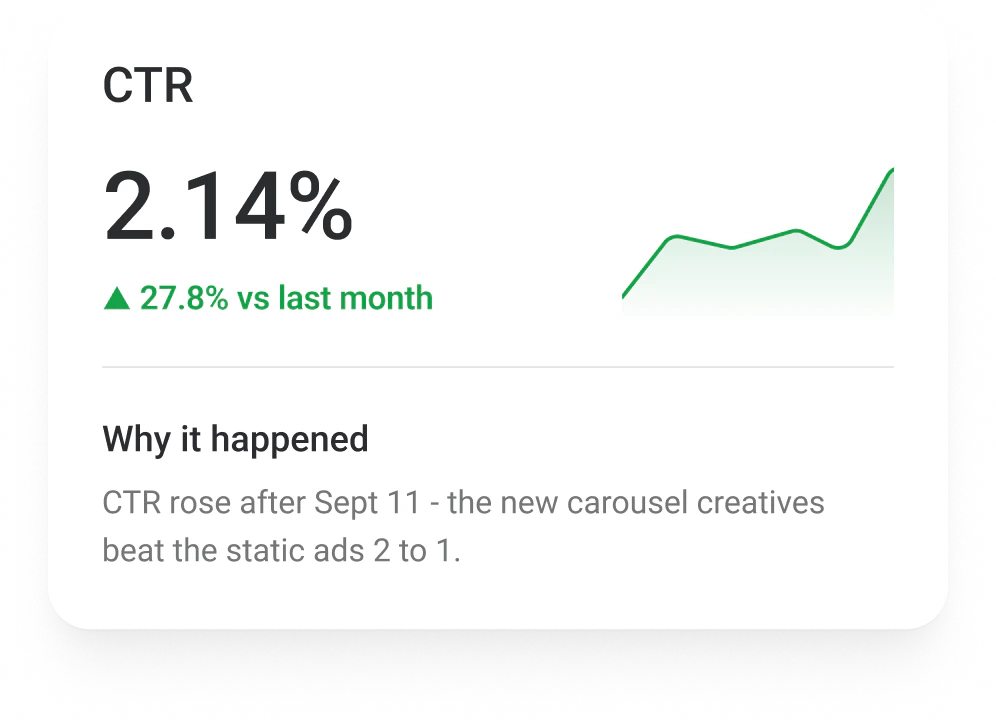
- More than the numbers: your AI Analyst reads the actual designs behind your content metrics.
- Sharper answers: it can explain a shift in engagement using the real design change, not a guess.
How to use it
Step 1
Open connector settings
Go to your AI Analyst settings → Connectors.
Step 2
Add a custom connector
Select Add custom connector, name it Canva and paste the URL of Canva's official MCP server.
Step 3
Authenticate with Canva
Sign in with your Canva account and set tool permissions per tool.
Step 4
Ask anything
Ask a question that touches Canva - it now pulls the record behind the number automatically.
The Databox difference
Why connecting MCP through Databox is different
You can connect this same MCP server directly to any AI tool. Here’s what changes when you connect it through Databox instead.

One tool, limited to MCP data
- Only sees what this MCP server exposes, nothing more
- No connection to your CRM, chat, or revenue data
- Not wired into your business context, so nothing runs automatically
With Databox
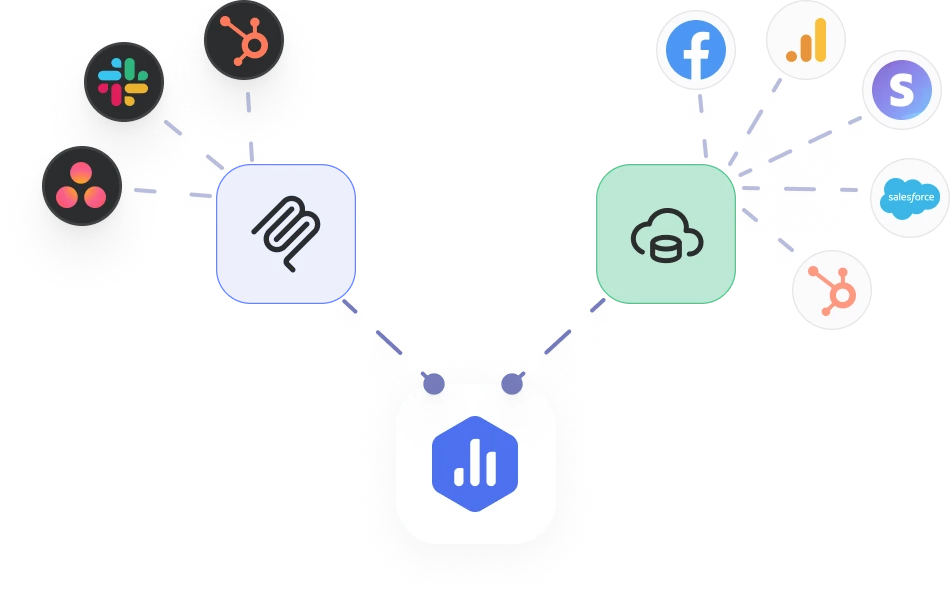
Enriched data, the whole story
- The MCP connector brings in this data, same as anywhere else
- Plus your other Databox integrations, already connected
- Your AI Analyst reasons over the whole story, not just this one tool
- Runs automatically with Routines, reusable in every Skill
Related
More like this

Figma
Design
Ask your AI Analyst about the design behind the metric, straight from Figma.

Ahrefs
SEO
See the backlink and site audit detail behind an SEO metric, straight from Ahrefs.

Airtable
Productivity
See the record and base behind an operations metric, straight from Airtable.
FAQ
Frequently asked questions
Is there an official Canva MCP server?
Yes. Canva provides a remote MCP server, though access is still rolling out to more clients and accounts.
Does connecting Canva cost extra?
No. MCP connectors are included with your AI Analyst on every plan that includes it.
What can my AI Analyst do in Canva?
It can read and search your designs, scoped to what you allow and what your account's access currently supports.
Does Databox have a one-click Canva connector?
Not yet. Today, connect Canva as a Custom connector using its official MCP server. A native, one-click Databox connector is planned.
What is an MCP connector?
An MCP connector links your AI Analyst to an external tool through the Model Context Protocol, an open standard for connecting AI assistants to real business systems. Once connected, your AI Analyst can read (and soon act on) the records behind your metrics - deals, tickets, conversations, campaigns - without you switching tabs.
How is an MCP connector different from a Databox integration?
A Databox integration brings your metrics into Databox so you can track, visualize and report on them. An MCP connector gives your AI Analyst access to the records behind those metrics - the deal, the ticket, the ad, the Slack thread - so it can explain why a number moved and act on it in that tool. Many tools, like HubSpot and Facebook Ads, have both, and they work best together: the integration shows what changed, the connector shows why.
Can I connect any tool, or only the ones in the connector library?
Any tool with an MCP server. You can pick an official connector built by Databox, then click connect and sign in. Or you can add a custom connector: paste the server URL, choose how it signs in (OAuth, API key, bearer token or none), name it and connect.
Is my data safe when I connect a custom MCP server?
You decide what each connector can do. Every tool on a connector has its own setting - Always allow, Needs approval or Blocked - and every tool starts on Needs approval. Official connectors are reviewed by Databox. Custom servers are not, and once connected, a server can access your AI Analyst's content and share data outside Databox. Only connect servers you trust. You can change permissions or disconnect at any time.
Do MCP connectors cost extra?
No. MCP connectors are included with your AI Analyst at no extra cost.
What can my AI Analyst do with a connected tool today?
It can read and act. Read tools let it look up deals, tickets, campaigns and messages to explain why a metric moved, answer a question or run a Routine. Write tools let it take action in the tool, like updating a deal stage, sending a Slack message or creating a task. Every action follows the permissions you set, and new tools start on Needs approval.
Give your AI Analyst the full picture
Connect the tools where your business happens, official or custom, and let your AI Analyst explain what changed and why.